I can guarantee you’ve got loads of clips sitting in your camera roll doing absolutely nothing. That video from the coffee shop, the one of you out on the bike, the quick clip from the club AGM. They’re just sitting there.
Here’s an idea. Why not turn them into a Reel, add some music, and pop in a quick message about something coming up. It takes less time than you’d think, and it’s a genuinely great use of ten minutes.
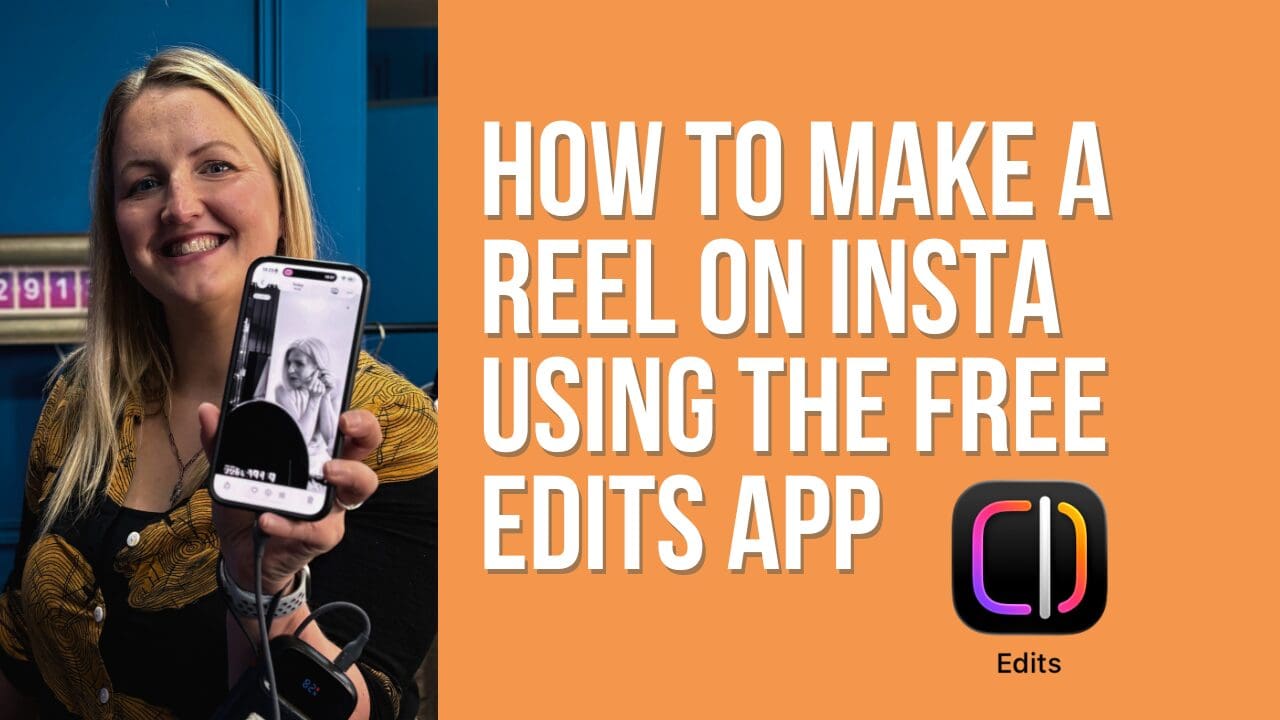
The tool that makes this easy is called Instagram Edits, and the best bit is you probably already have access to it.
why do i need another app?
Fair question,
You don’t really, that’s the beauty of it, but you will get loads more functionality if you do download it. Let me explain.
Instagram Edits is a free editing tool built right into Instagram. It gives you everything you need to create, edit and reuse short videos, all in one place. If you’re running a small business or you’ve been tasked with ‘doing the social media’ for a club you’re a member of, it’s especially handy because it keeps everything simple, organised and repeatable, so you’re not reinventing the wheel every time you want to post something.

Explain like i'm 5...
Instagram Edits works really well because you can create once, reuse anytime. Edit a video once, share it to Instagram, then come back weeks or months later and reshare it. No duplicated drafts, no starting from scratch again. Chances are your new followers won’t have seen a video from ages ago and if it’s evergreen content, then why wouldn’t you share it again?
Edit with confidence You can trim clips, reorder shots, add text, captions and overlays to make your videos clearer and more engaging, even if you’ve never edited a video in your life.
Built-in captions Auto-captions make your videos easier to watch and more accessible, which matters a lot when most people are scrolling with the sound off. Keep an eye out for misspelled words due to your accent.
Overlay photos and videos Jazz your video up a bit. Instead of you just talking to camera the whole time, in the same space – you can overlay video clips or photos of recaps, highlights, or those before-and-after moments you want to show off.
Teleprompter feature This one’s a game changer if you hate talking to camera. Say you’ve just had a club AGM and need to record an update. Instead of winging it and forgetting half of what you meant to say, you can read from the teleprompter like a news reader and get it done in one clean take. Now please – for all that is good – still have a bit of character to your voice. Trust your gut and if it looks like you’re reading off a teleprompter really slowly, increase the speed so you sound a bit livelier!
And the best part is everything stays in one place. No extra apps, no exporting, no confusion. Although if you do want to use the video elsewhere, you can export it and save a copy to your camera roll for YouTube, TikTok or anywhere else that isn’t Meta.

“I feel like a technology dinosaur”
If that’s you, you’re in the right place. This next bit is for anyone who’s ever looked at their phone and thought “I have absolutely no idea where to even start.”
No jumping ahead, no assuming you already know where buttons are. I’m going to walk you through it in really slow time, starting right at the very beginning, how to take a photo and a video on your phone, then how to turn those into a reel using templates in Instagram Edits.
If you’ve ever felt like everyone else got a manual for this stuff and you missed the memo, watch this one first.
- Open Edits
- Press the play button (second in from the left)
- Scroll through all the videos for inspiration
- Find a Reel that says ‘Use Template’
- Click ‘Add Clip’ then ‘Gallery’
- Replace all the clips with your own videos and photos from your phone gallery
- In the video I’ll show you how to adjust the clips to get the right part of the action using the slip tool
- Press ‘Next’ and export your video to Instagram or download it to be used on another platform
The bit that matters most
You don’t need to be a confident on-camera presenter to make good content. You don’t need expensive kit. You just need your phone, whatever clips you’ve already got sitting there, and about ten minutes.
If this still feels like a lot, that’s exactly the kind of thing I help business owners with, showing up online using nothing more than the phone already in your hand.
- Lyn's tip of the day
See that phone in your hand we’re talking about? Before you even think about taking a photo or video – give your camera lenses a wipe. Grubby finger prints, old makeup and general grub will make your photo look dull and listless.